The Teaching Schedule System helps manage teaching schedules visually and flexibly on Moodle. The official user manual is at calendar.samio.fun/activities/calendar/guide.php. This post summarizes the main features.
For Teachers
Teachers can access the calendar via internal login (username/password from the center) or a shared link (token) sent by Email/SMS without an account.
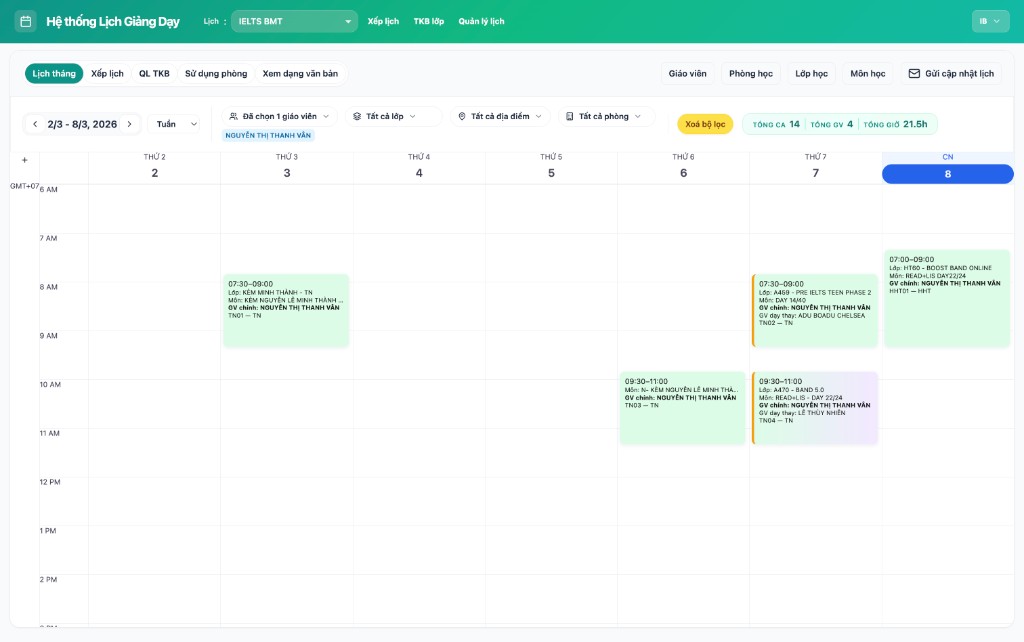
- Views: Monthly calendar (traditional day grid) or text list, with filters for Day/Week/Month/Year.
- Calendar cards: Show subject, time, main/substitute teacher, room. Orange border = substitute teacher assigned. Click a card to see full details (notes, full teacher list).
- Attendance: If an event is linked to a class, an icon takes you to the Student Attendance page for that session.
For Schedule Creators (Administrators)
Creators log in via WordPress to gain editing permissions.
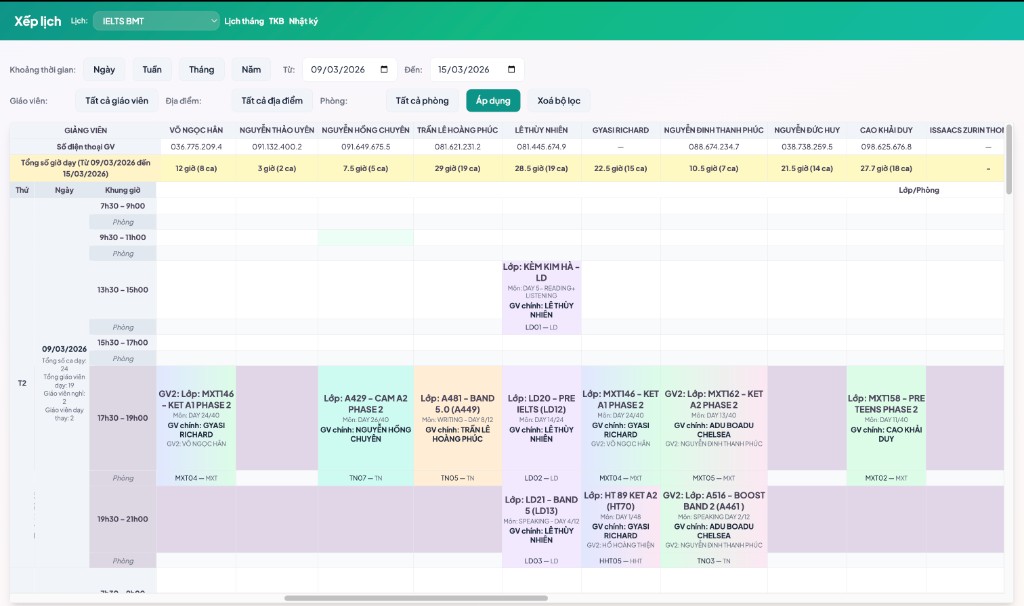
- Teacher calendar: View schedules per teacher (weekly/daily).
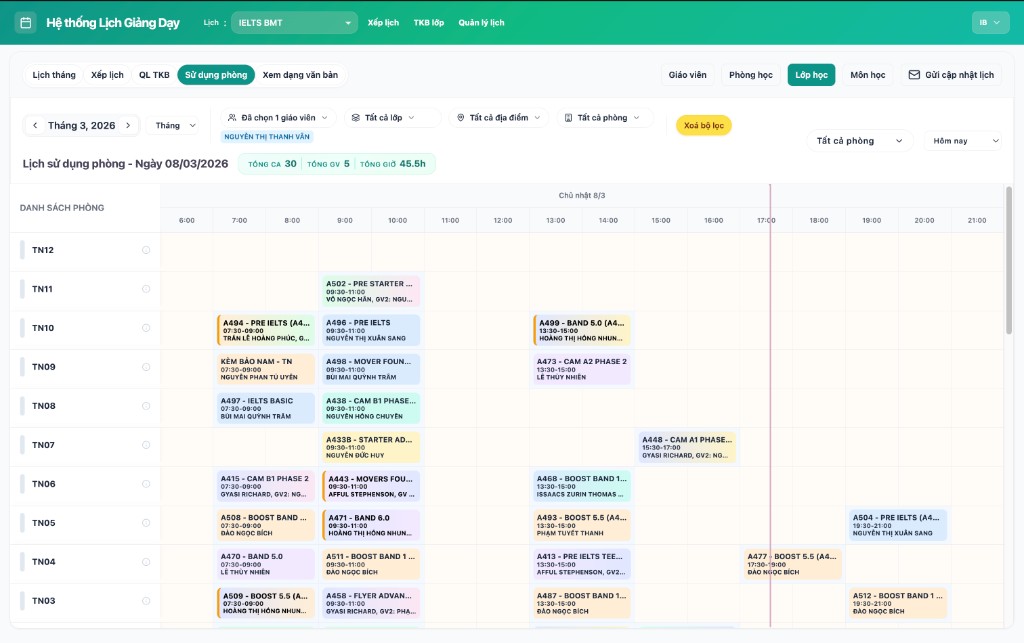
- Room usage: Track room occupancy; drag and drop events to change rooms.
- Filters: Filter by Teacher or Class; "Clear Filters" to reset.
- Fast creation: "New Schedule" button — enter Subject, Teacher (main/substitute), Date, Time, Room and Save.
- Card actions: Hover over a card to Edit, Delete or Copy. Drag and drop to change date/time/room depending on view.
- Send schedule: Email detailed teaching schedule notifications to faculty with one click.
- Master data: Manage Teachers, Rooms, Classes/LMS, and Subjects for quick schedule creation.
Multi-language and display
The system supports Vietnamese / English. Card text color adjusts automatically for readability.
Reference documentation version: 2.5.0 — Teaching Schedule Management System.