When developing Moodle on macOS, many use MAMP for Apache, PHP, and MySQL/MariaDB. However, MAMP often ships an older MariaDB/MySQL (e.g. 8.x), while newer Moodle requires MariaDB >= 10.11. The solution: install a new MariaDB via Homebrew and use MAMP only for Apache + PHP.
1. The problem with MAMP and Moodle
MAMP typically uses an old MariaDB/MySQL (e.g. 8.x). Newer Moodle versions require MariaDB >= 10.11, so the system check fails and Moodle will not install or upgrade.
2. Install MariaDB via Homebrew
Install Homebrew first, then run:
brew install mariadb3. Start MariaDB
brew services start mariadb4. First login
sudo mysql5–7. Create database, user, and grant privileges
CREATE DATABASE brisky2026 DEFAULT CHARACTER SET utf8mb4 COLLATE utf8mb4_unicode_ci;
CREATE USER 'brisky2026'@'localhost' IDENTIFIED BY '12345678';
GRANT ALL PRIVILEGES ON brisky2026.* TO 'brisky2026'@'localhost';
FLUSH PRIVILEGES;
8. Import Moodle database
mysql -u brisky2026 -p12345678 brisky2026 < ~/Downloads/briskynew.sql9. Verify import and table prefix
mysql -u brisky2026 -p12345678 -e "SHOW TABLES FROM brisky2026;"You should see many tables; if they use a custom prefix (e.g. js0h_), set the same prefix in Moodle config.
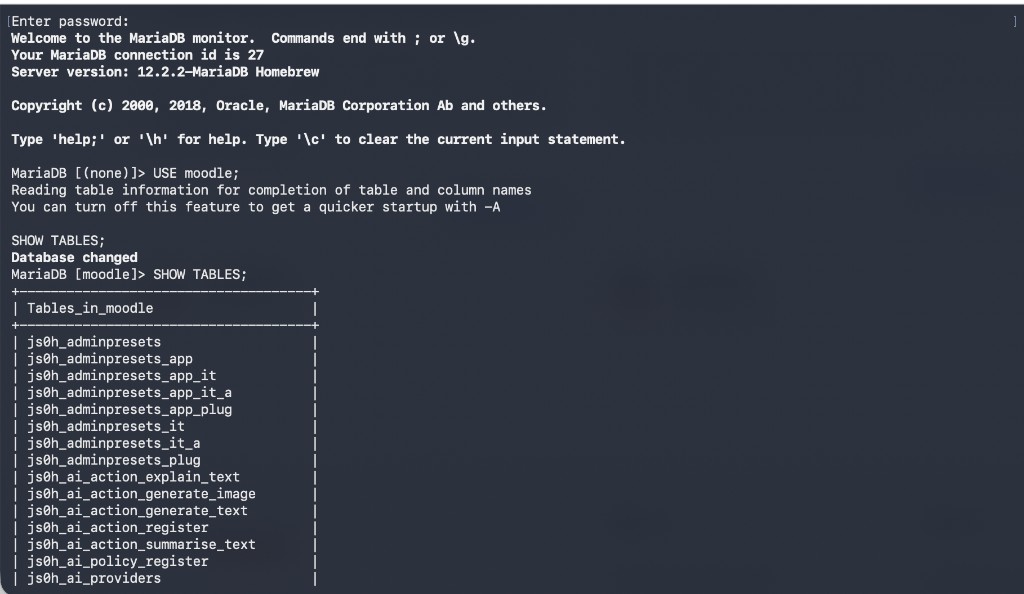
10–11. config.php
In config.php set dbhost to 127.0.0.1, use your database name, user, password, and the correct prefix (e.g. js0h_).
12–14. Restart Apache, clear Moodle cache, open site
Restart MAMP Apache, clear moodledata/cache and sessions if needed, then open http://localhost:8888/brisky.
Common issues
Wrong table prefix → Moodle runs installer; wrong user/password → no DB connection; wrong wwwroot → login issues.
Conclusion
Use MAMP for Apache + PHP and Homebrew for a modern MariaDB so you get MariaDB 10.11+ and a Moodle-compatible setup on macOS.